Guide · about 5 minutes
Create the rs.ge service user Companion needs
Companion reads your invoices, waybills and VAT from rs.ge through a service user (ქვე-მომხმარებელი, “sub-user”) that you create on rs.ge. You choose its password and its rights, and you can deactivate or delete it on rs.ge at any time.
Before you start
- A computer. rs.ge works in a phone browser, but its forms are cramped.
- The company's main rs.ge login (TIN or username and password) and the phone that receives its SMS codes.
- A mobile number to confirm the service user by SMS.
Three things to get right
- Choose the Sub-User tile (ქვე-მომხმარებელი), not “Physical person – sub-user”, which is selected when the window opens.
- The username Companion needs is User:TIN, for example
companion:405863070: the name you chose, a colon sign (:) and the company's 9-digit TIN. - Tick only Invoice and Waybill, each with Read and Create/edit. Never “select all rights”.
On rs.ge
-
Sign in to rs.ge with the main account
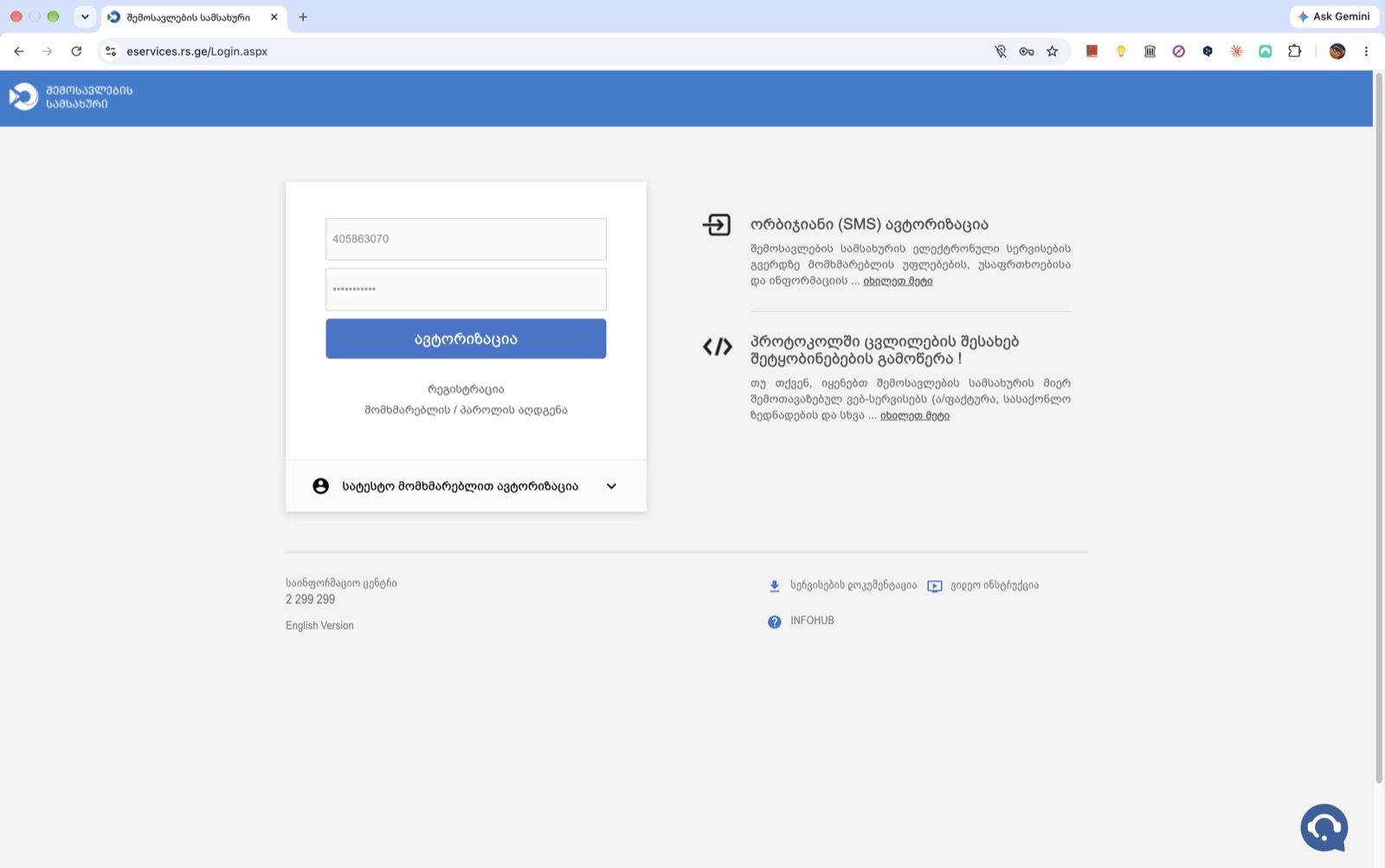
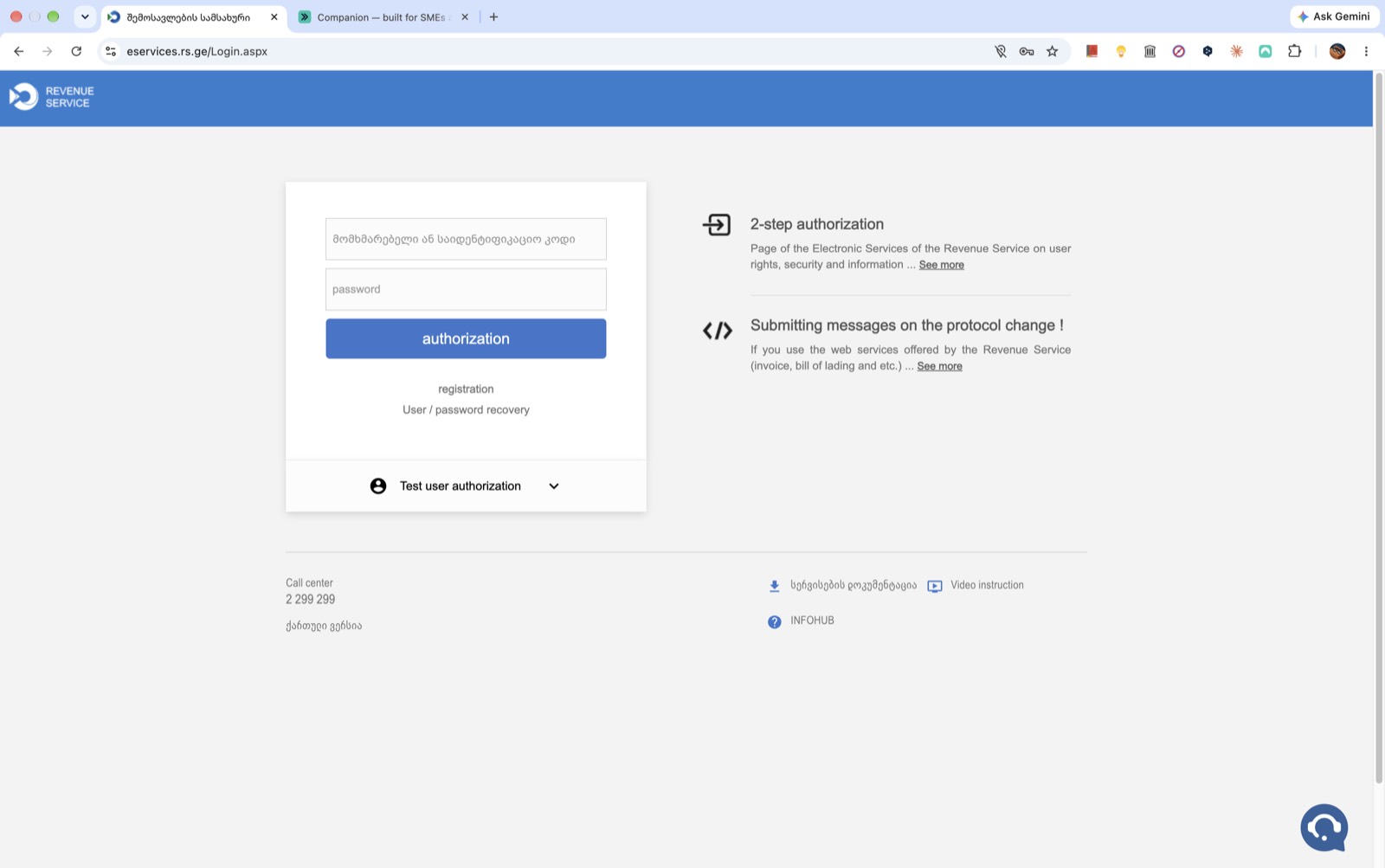
Open eservices.rs.ge and sign in with the company's main account: its TIN (or username) and password, then the SMS code. To see rs.ge in English, click “English Version” at the bottom of the page.
-
Open sub-user management
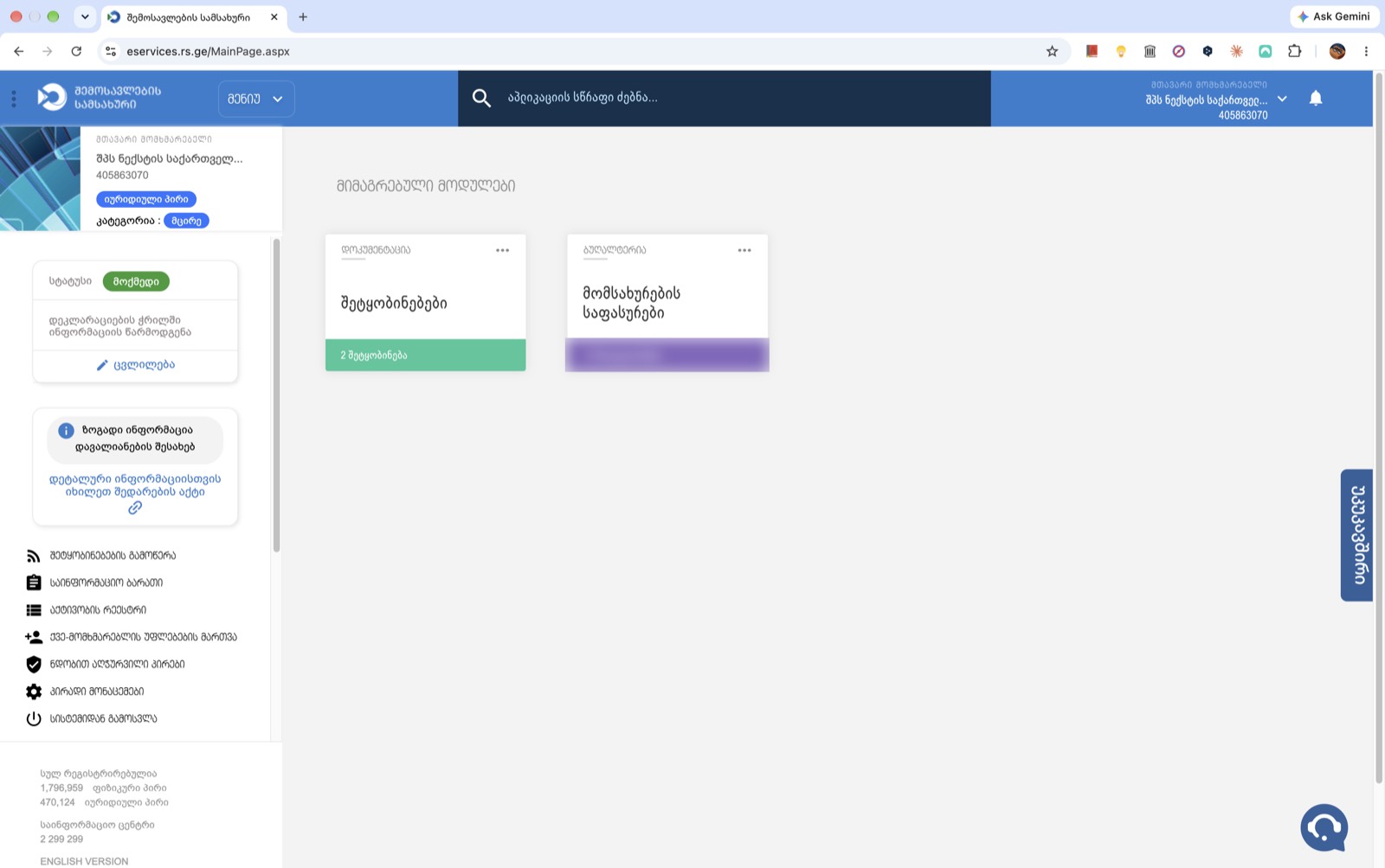
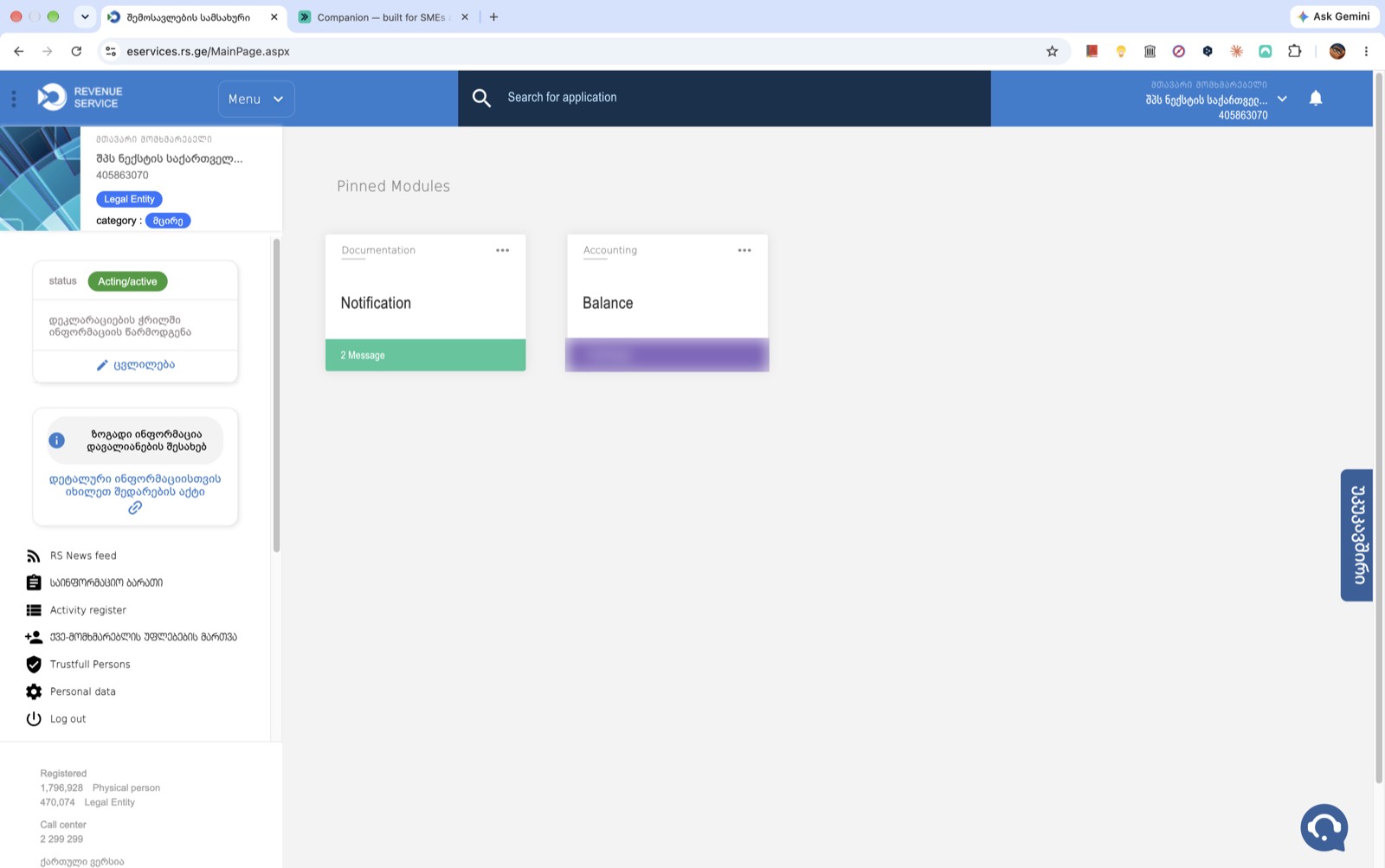
In the left sidebar, click ქვე-მომხმარებლის უფლებების მართვა (Sub-user rights management), next to the icon of a person with a plus. It stays in Georgian even when rs.ge is in English.
-
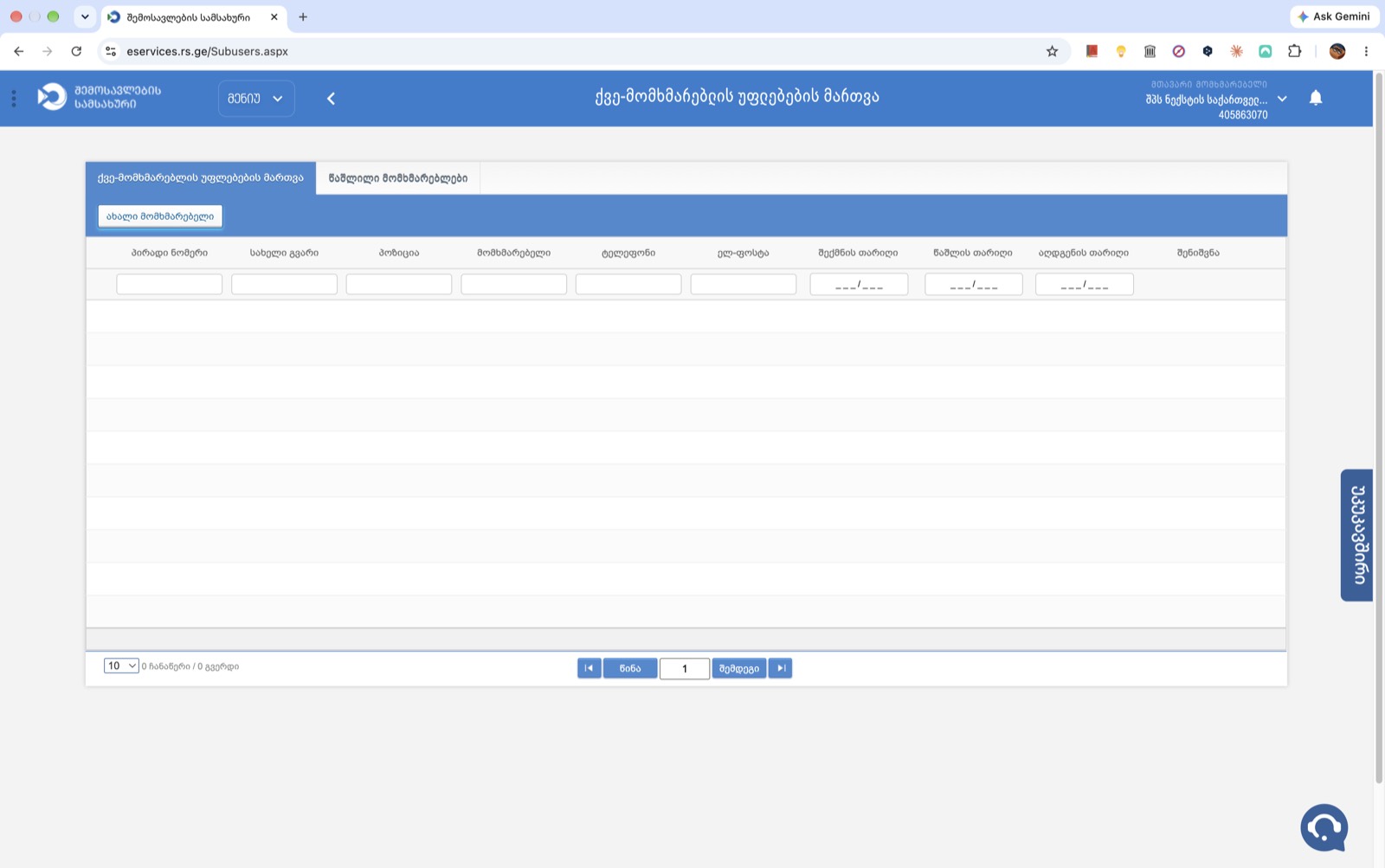
Click “New user”
The list of sub-users opens. It is empty the first time. Click ახალი მომხმარებელი (New user) at the top left.
-
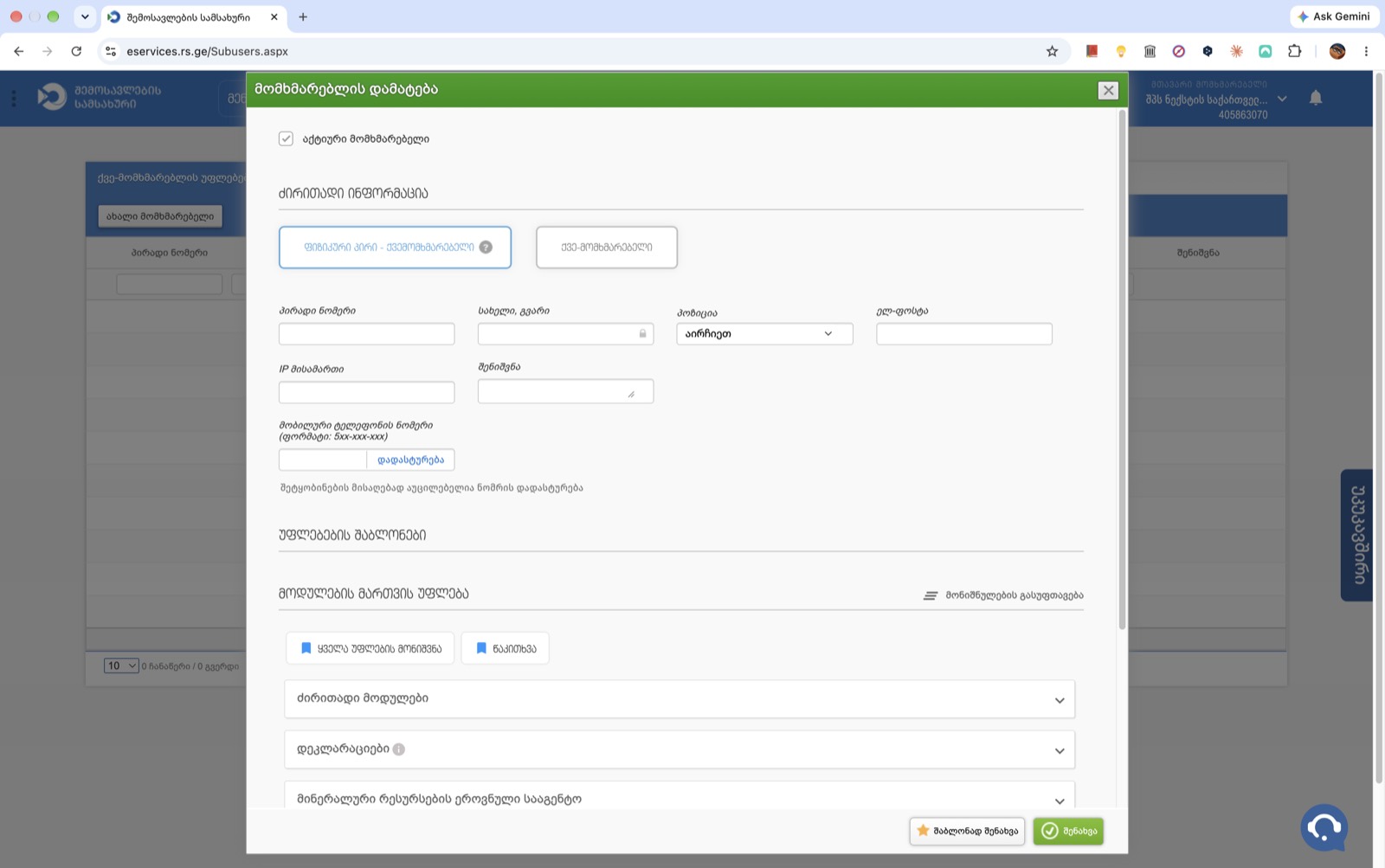
Don't use the tile that is already selected
The Add user window opens with ფიზიკური პირი – ქვემომხმარებელი (Physical person – sub-user) selected. That is not the type Companion uses. Keep აქტიური მომხმარებელი (active user) ticked.
-
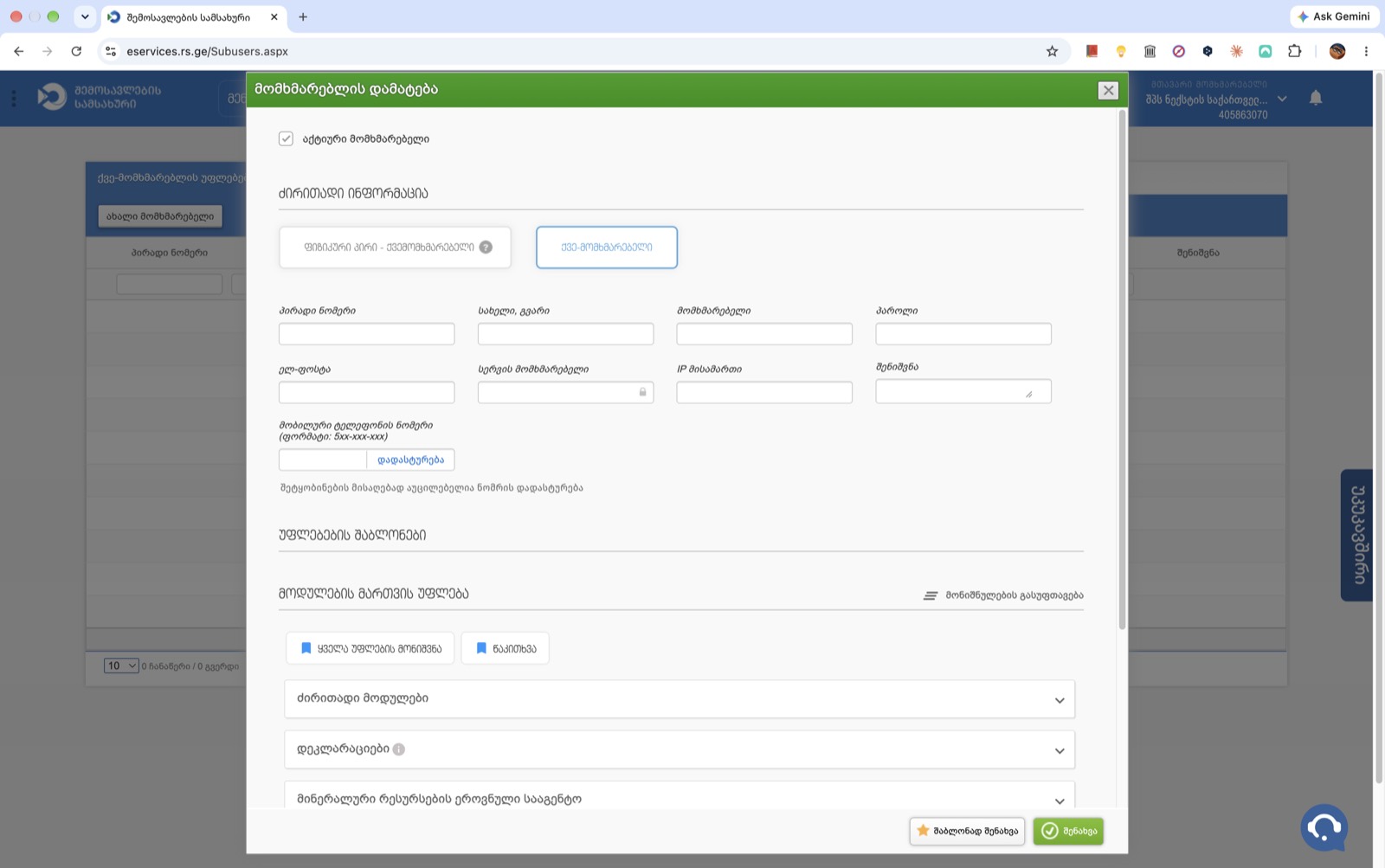
Choose the “Sub-User” tile
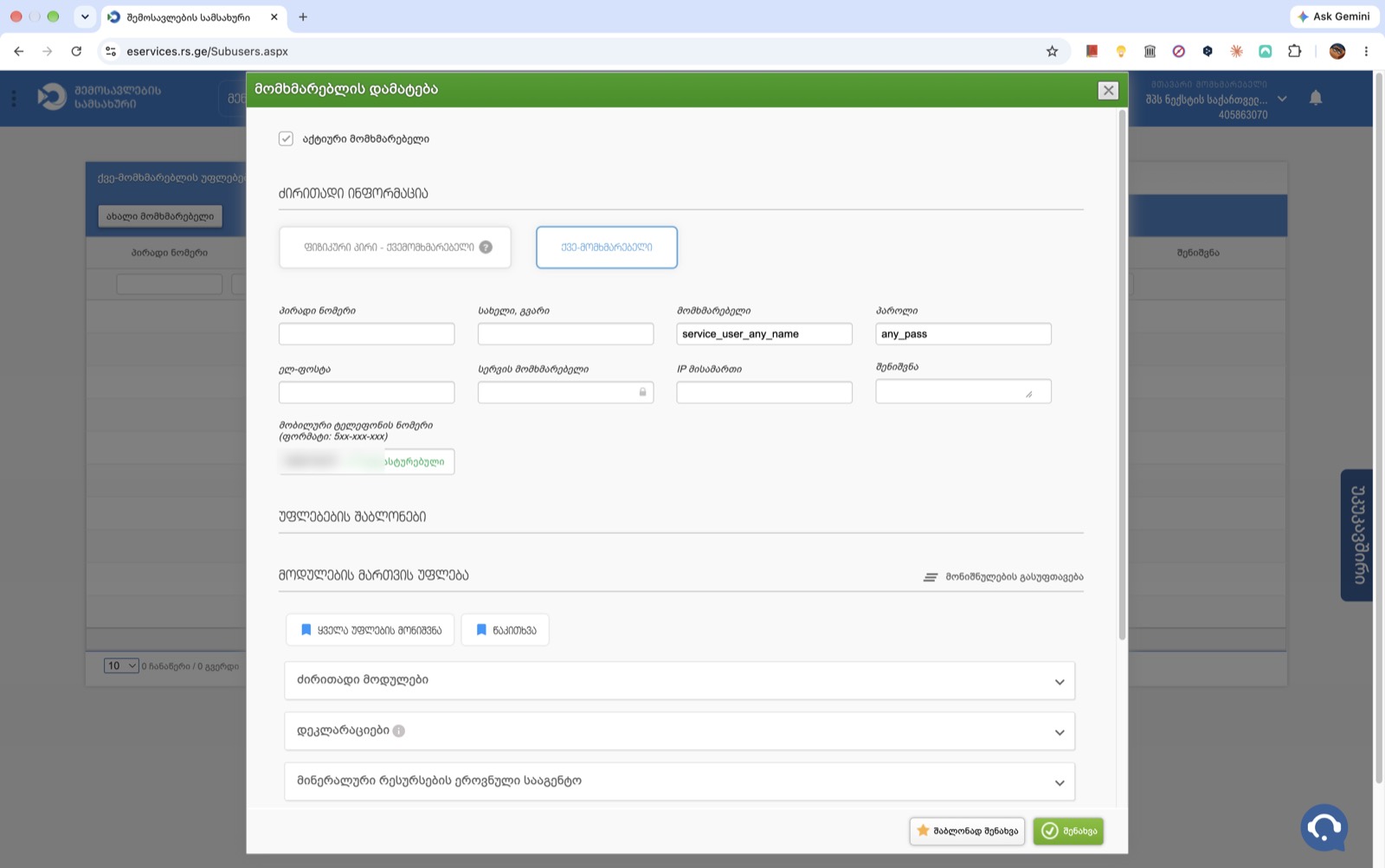
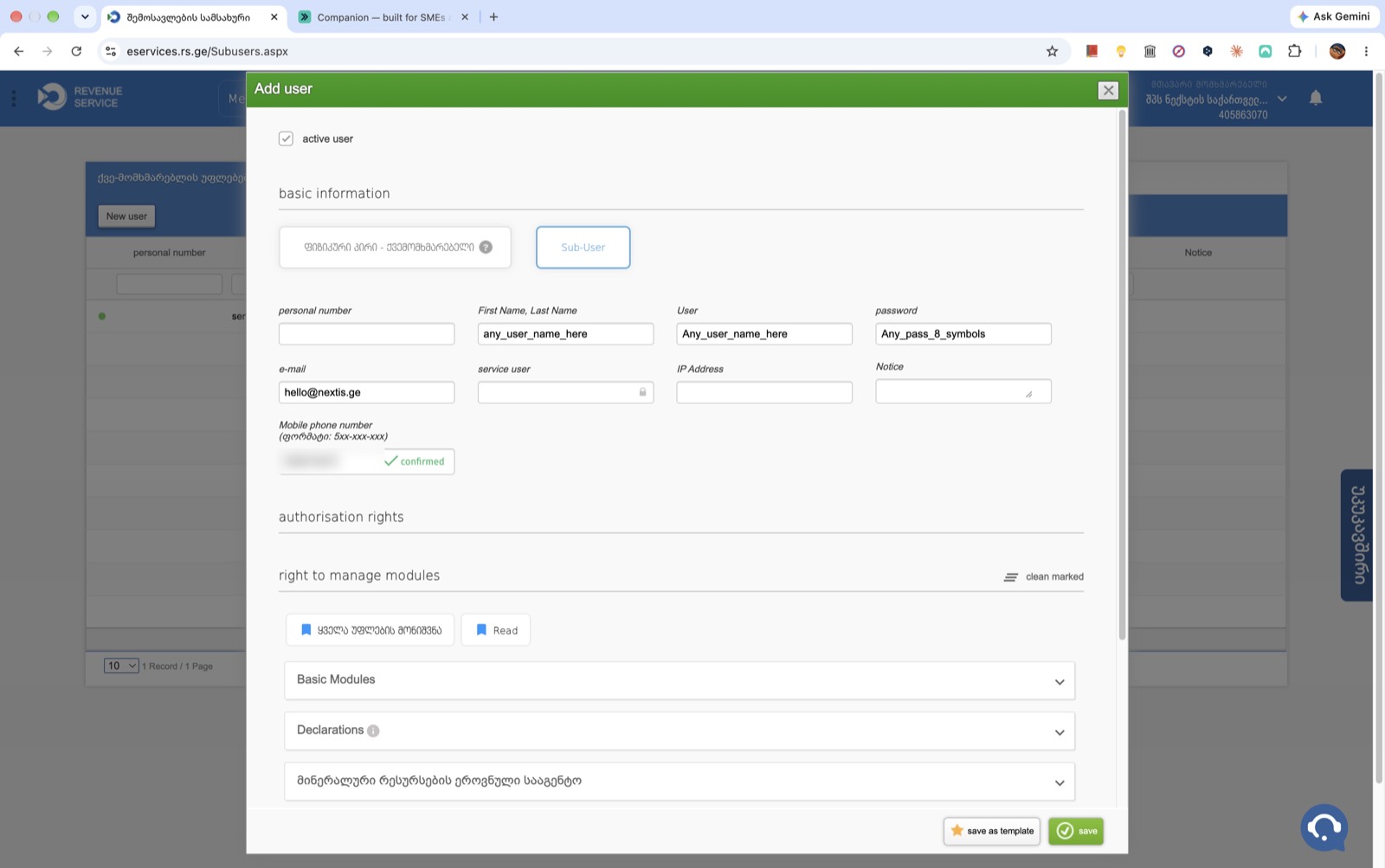
Click ქვე-მომხმარებელი (Sub-User). It turns blue, and the form now has მომხმარებელი (User) and პაროლი (Password) fields.
-
Fill in the login and confirm the phone
Enter a name (სახელი, გვარი), a User login of your choice (for example
companion), a Password, and an e-mail if you like. Type a mobile number in the format 5xx-xxx-xxx, click დადასტურება (Confirm) and enter the 4-digit code from the SMS. Leave IP მისამართი (IP address) empty: an address there that isn't Companion's server blocks the connection.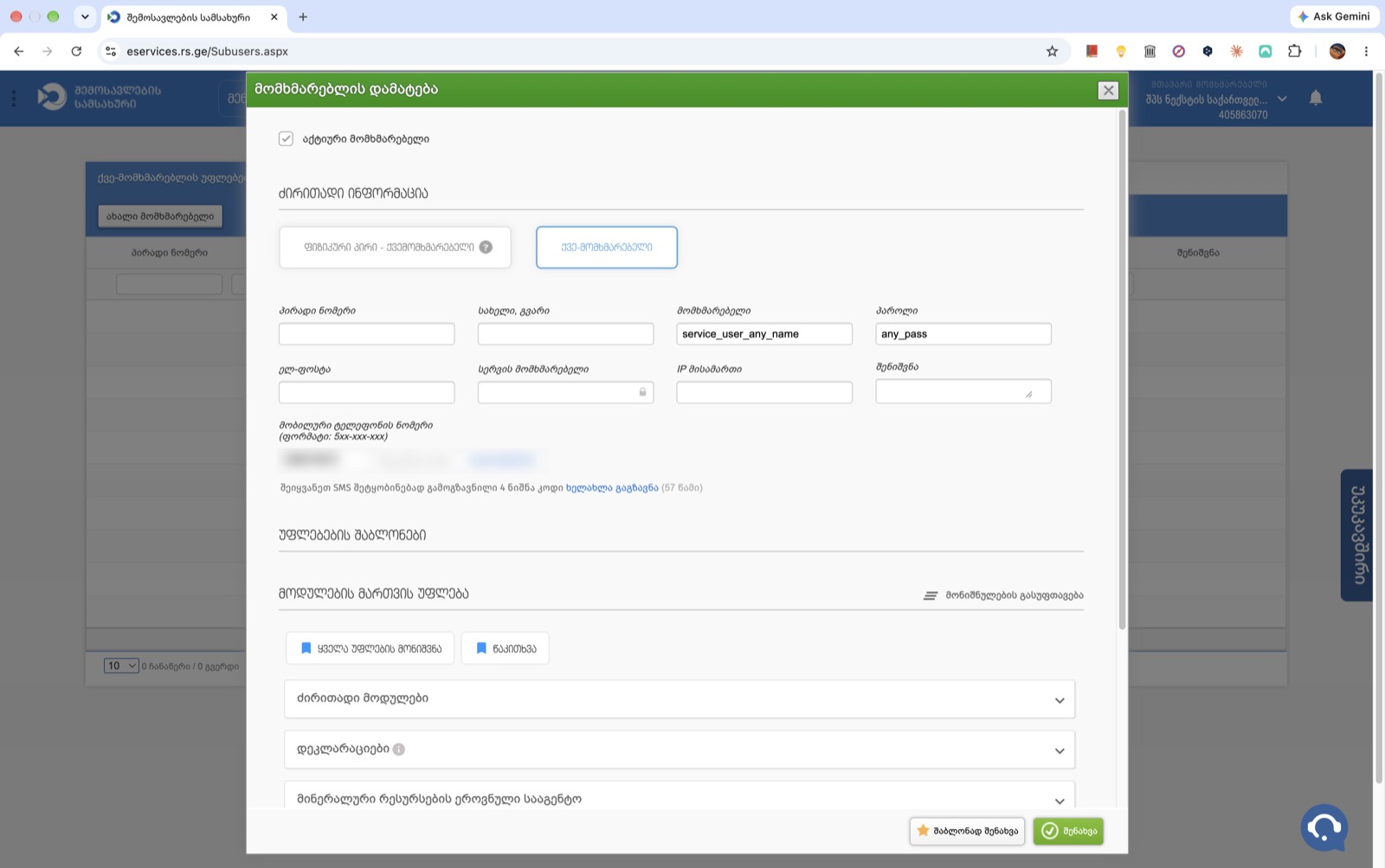
-
Wait for “confirmed”
A green ✓ დადასტურებული (confirmed) appears next to the phone number. The user can't be saved before that.
-
Give it only the rights Companion needs
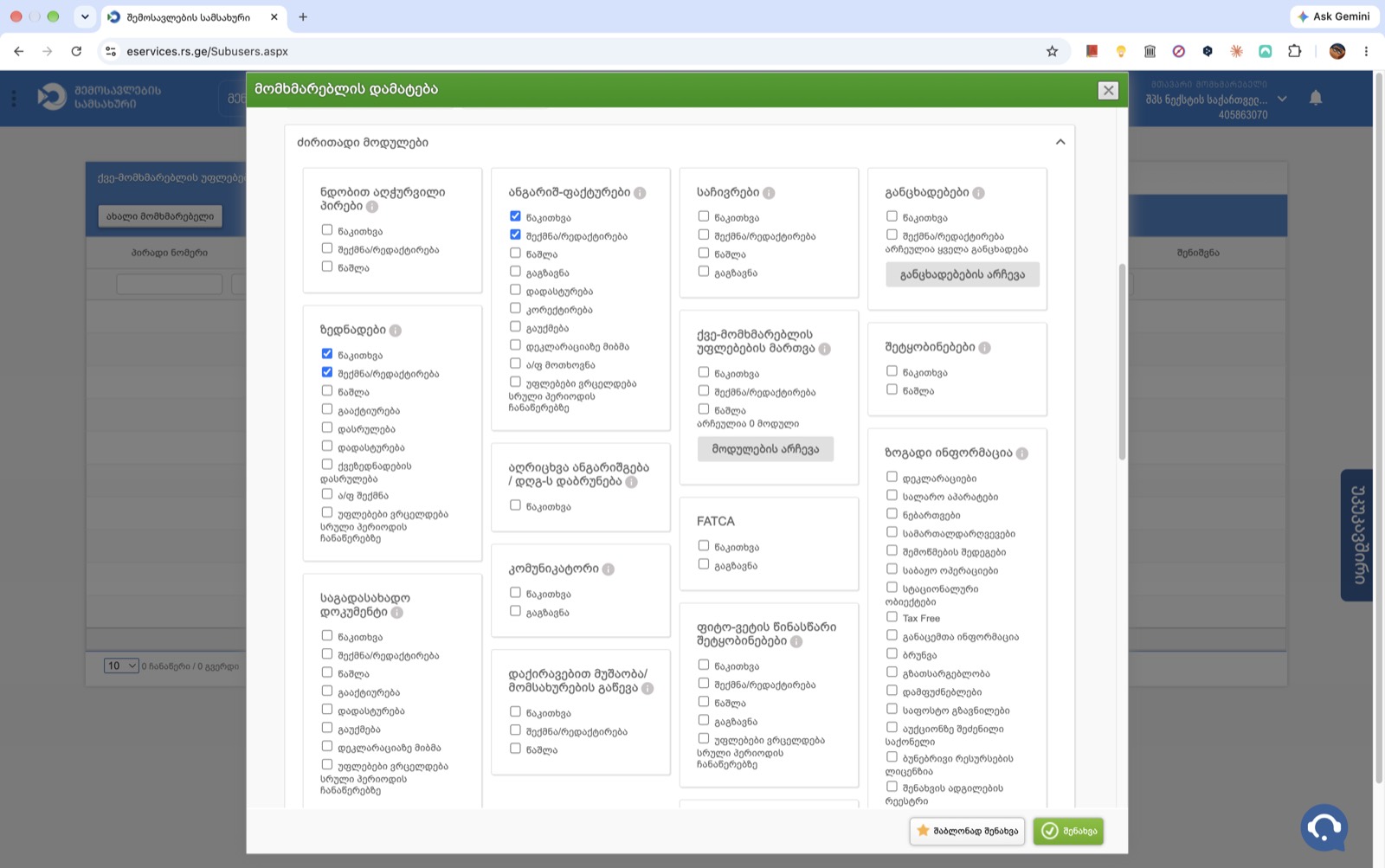
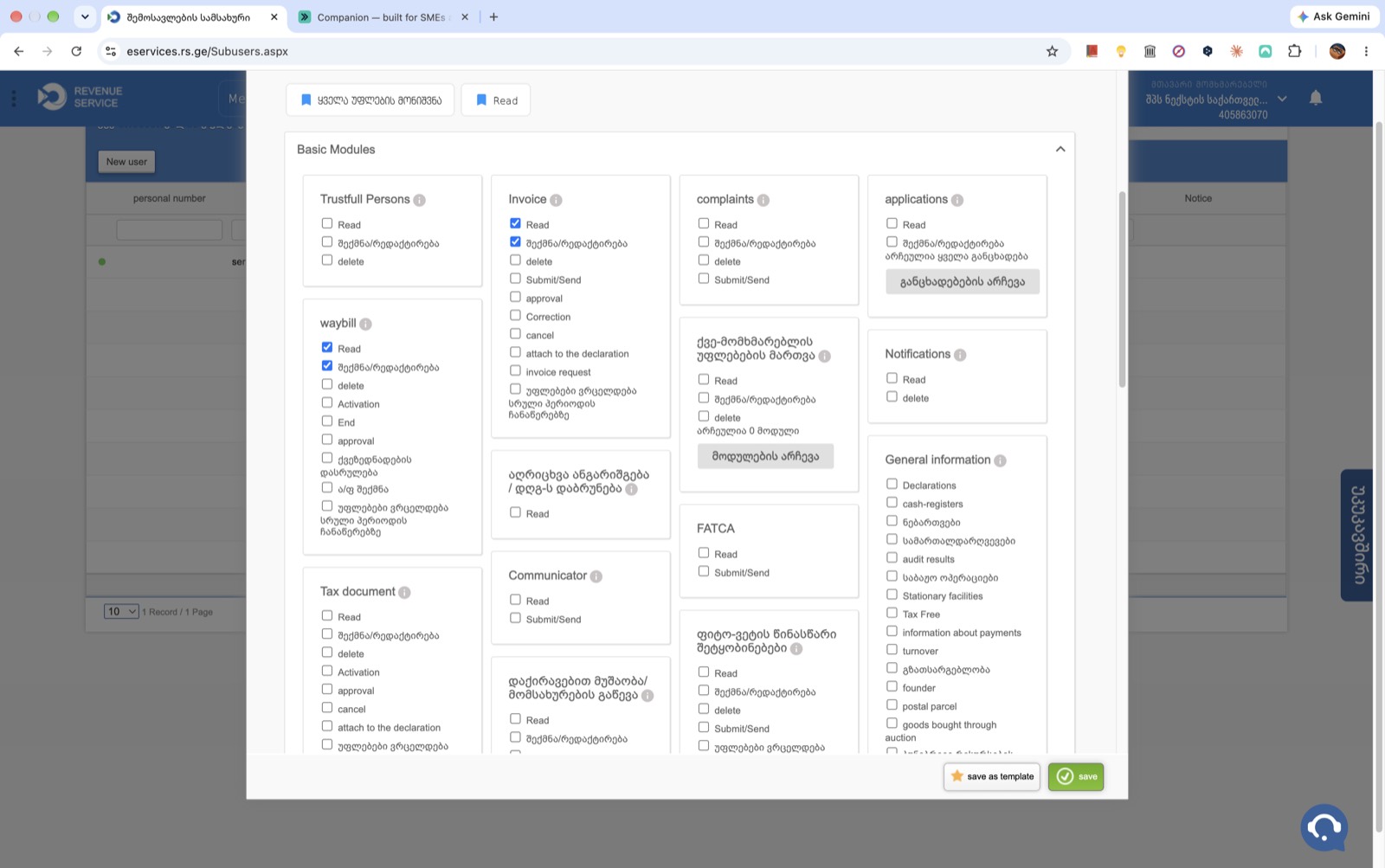
Scroll down to the rights. Don't click ყველა უფლების მონიშვნა (select all rights) or წაკითხვა (Read, which ticks reading everywhere). Open ძირითადი მოდულები (Basic Modules). Under ანგარიშ-ფაქტურები (Invoice) and under ზედნადები (Waybill), tick წაკითხვა (Read) and შექმნა/რედაქტირება (Create/edit). Leave the rest unticked.
-
Save, and copy the full username
Click the green შენახვა (Save). rs.ge shows the full service-user name: User:TIN, for example
Any_user_name_here:405863070. Copy it exactly. That full name, with the colon sign and the TIN, is the username Companion needs.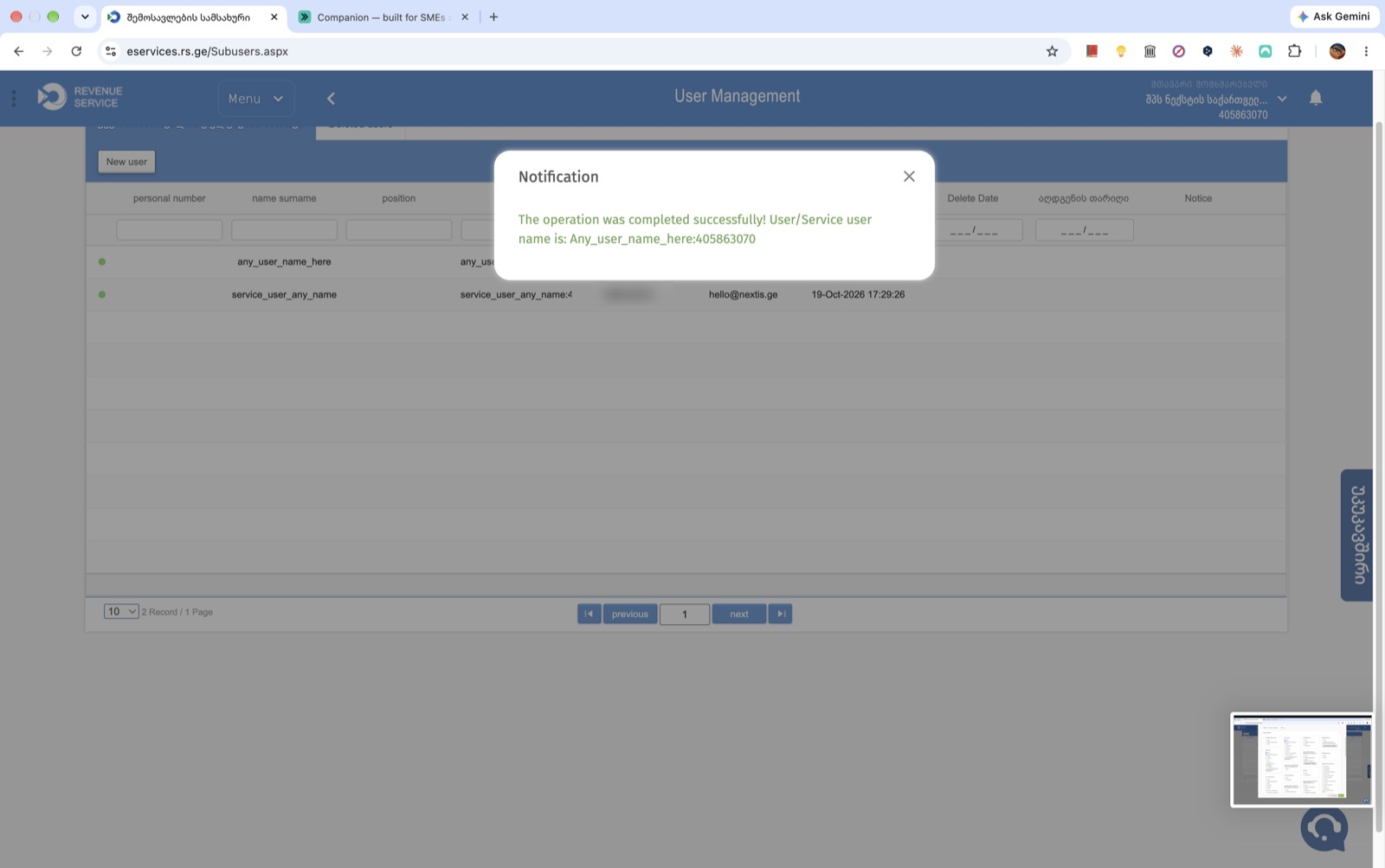
-
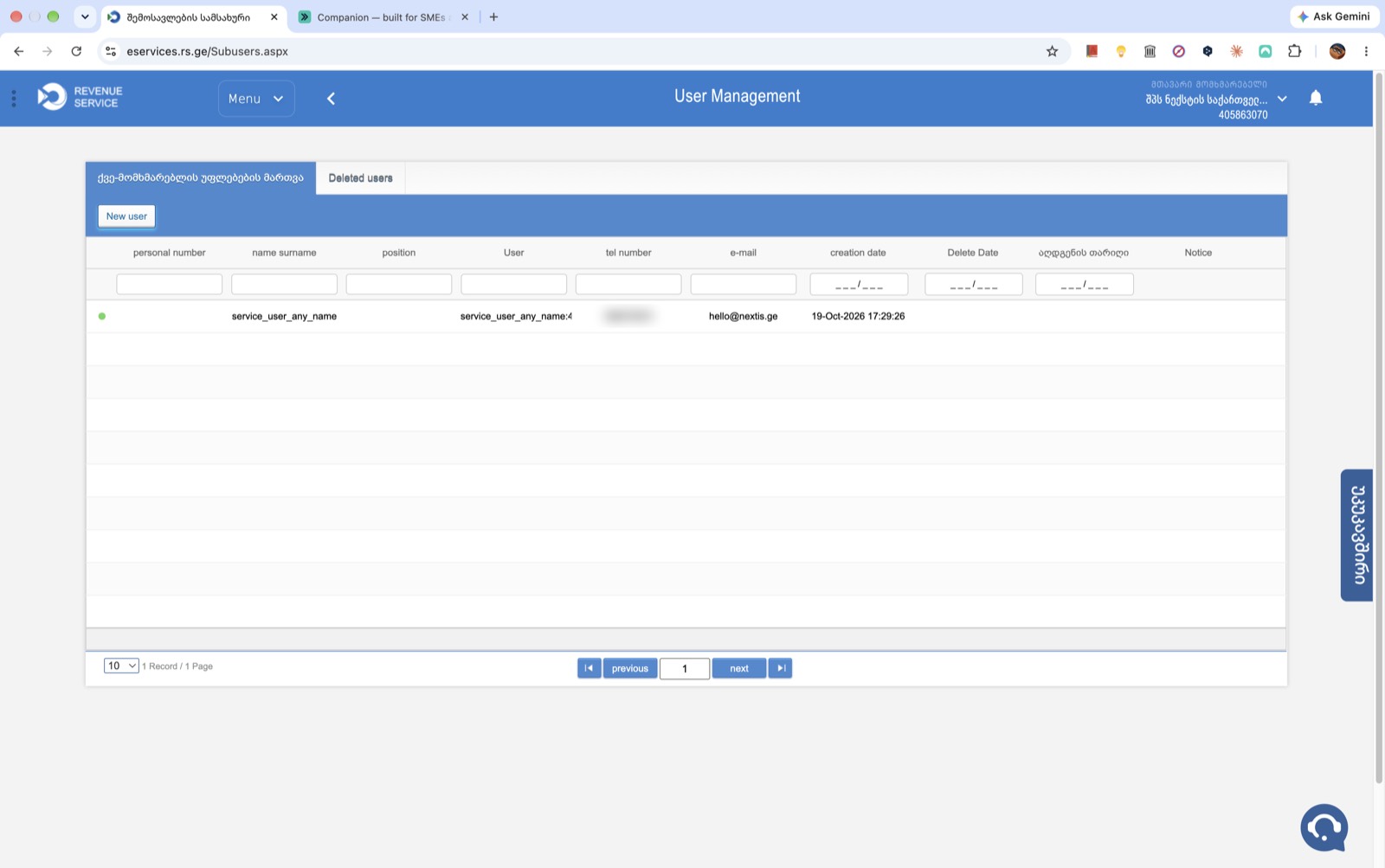
Check that it is active
The new user is in the list with a green dot (active). You can deactivate or delete it here at any time. Companion then stops syncing.
In Companion
-
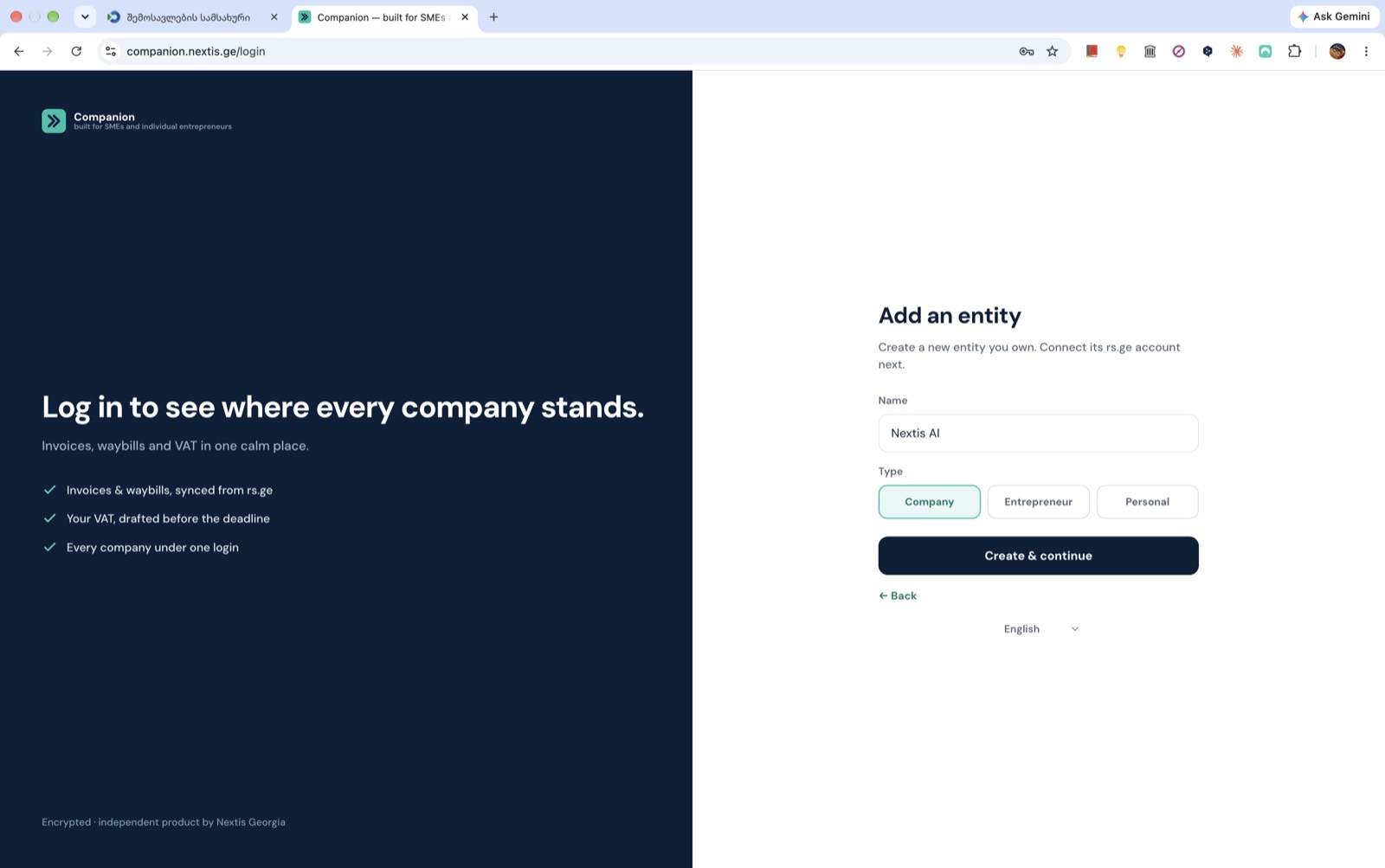
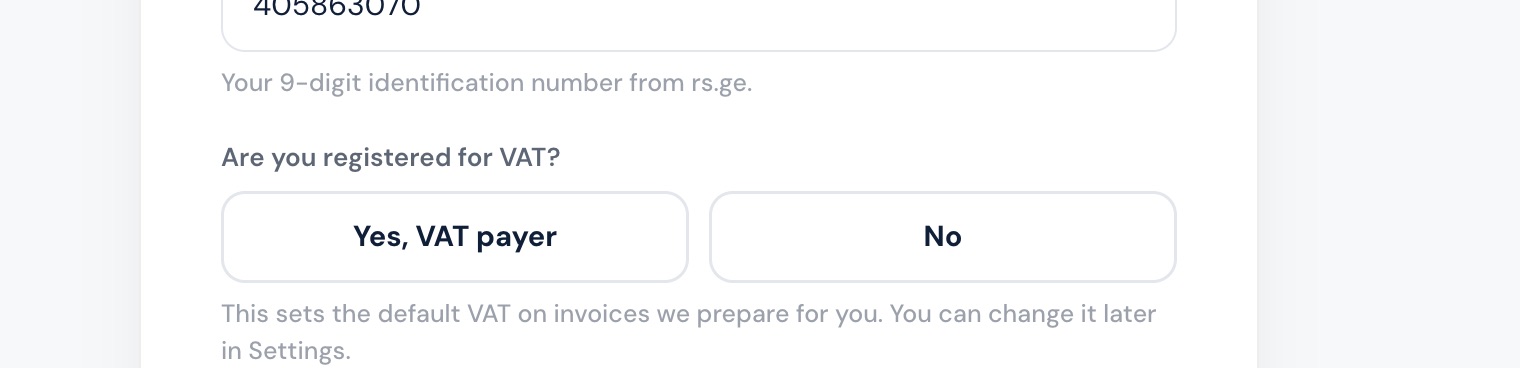
Add the company in Companion
In Companion, add the company: its name and type, then its 9-digit TIN and whether it is registered for VAT.
-
Connect to rs.ge
On Connect to rs.ge, enter the Username
User:TINexactly as rs.ge showed it, the Password from step 6, and the 9-digit Company TIN. Then click Connect & continue.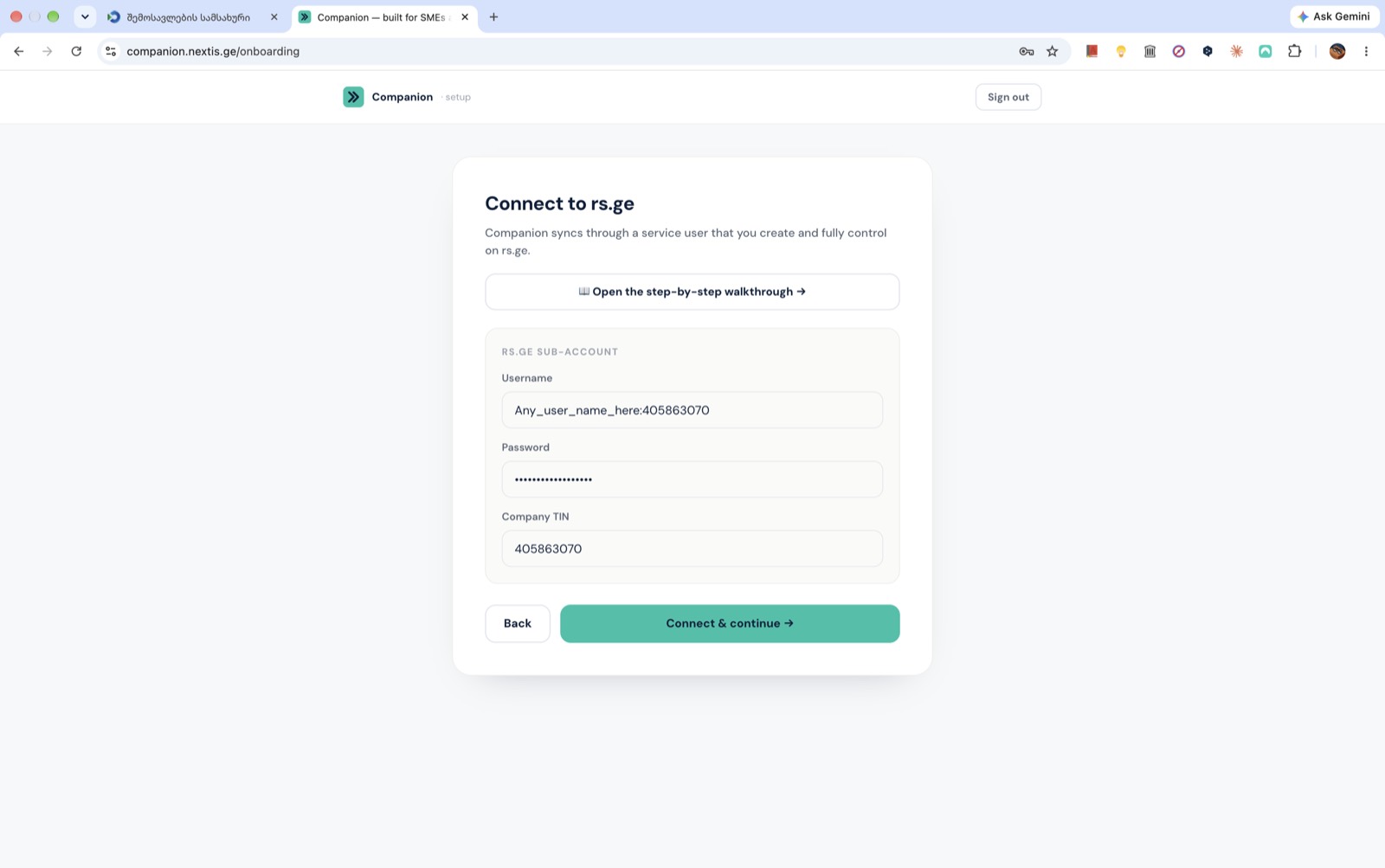
If the connection fails
- The username must end in :TIN. Only the name you chose is not enough.
- Check that the user is active (green dot) in the rs.ge sub-user list.
- Check that Read and Create/edit are ticked under Invoice and Waybill.
- If you change the service user's password on rs.ge, enter the new one in Companion too.
- Check that IP მისამართი (IP address) is empty on the service user. A filled-in address blocks Companion.
Stuck?
Write to hello@nextis.ge with your company's TIN and the step where you stopped. Never send us a password.
Screenshots taken on 19 October 2026. rs.ge may look slightly different later.